



Products
ReplyReader: hear every new reply.
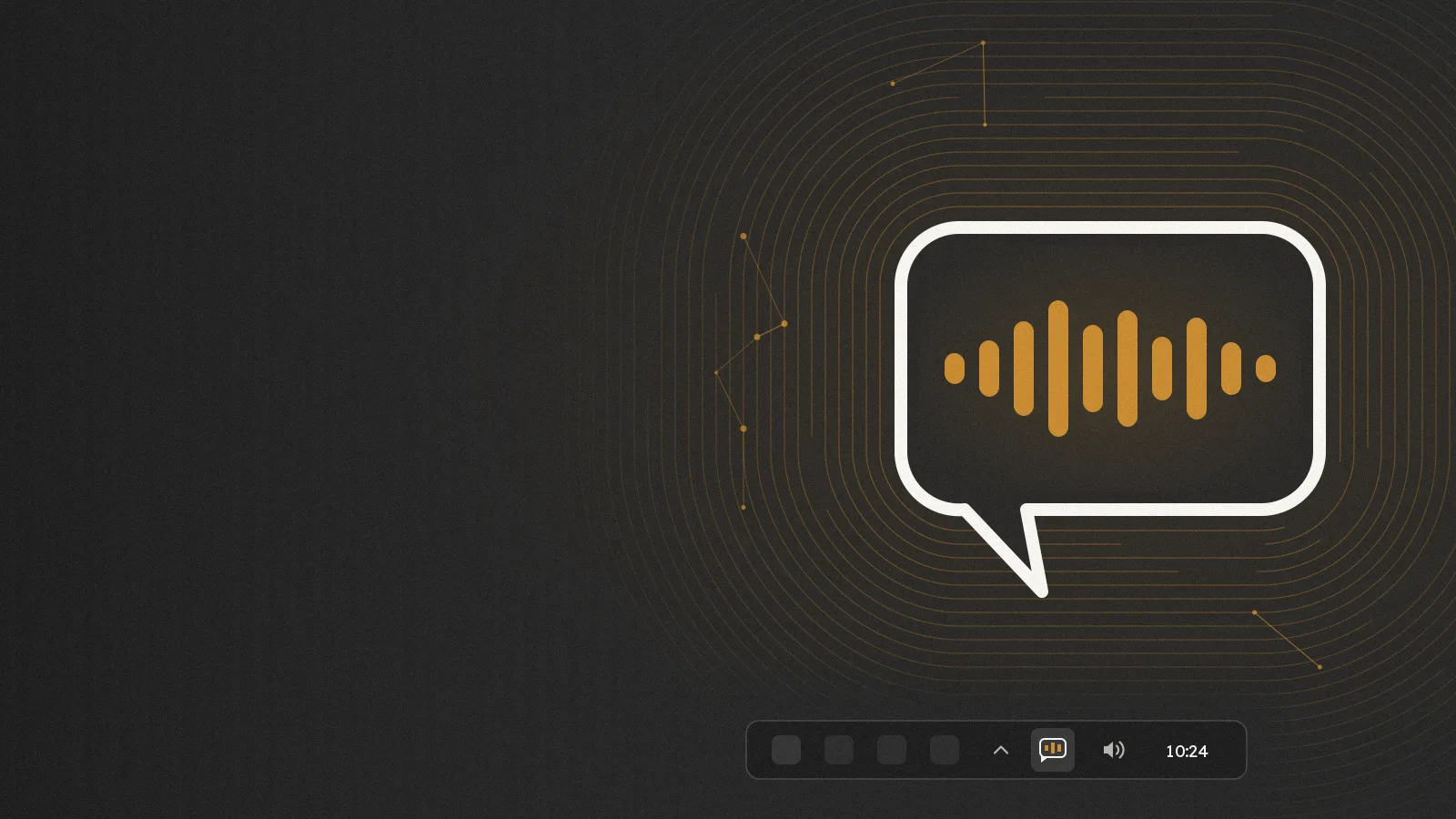
ReplyReader is a free Windows tray app from Sentient Solutions that reads new replies in the Grok Bot desktop app aloud, so you can look away and keep listening.
Download ReplyReader for WindowsHow it works
Free · Windows 10 or 11 · Beta, not code-signed yet. See the Windows warning note below.
Beta
How it works
- Download and run. ReplyReader is a single small file. It installs just for you, with no admin rights needed, and lives in your system tray.
- Choose what's shared. On first run, ReplyReader explains what it reads and asks two questions: whether to check for updates and whether to allow bug reports. Both start unticked, and nothing is sent anywhere until you answer.
- Turn it on and listen. Use the tray menu or press Ctrl+Alt+F9 to turn reading on. When a new reply appears in the Grok Bot desktop app, ReplyReader reads it aloud. Ctrl+Alt+F10 stops the current reply, and you can change both hotkeys in Settings.
ReplyReader reads only new replies and keeps them listenable: it skips code blocks, says "link" for web addresses and "a file path" for file paths, and drops long unbroken strings.
A voice for every bot
- Windows voices, out of the box. ReplyReader uses the free voices already built into Windows by default. No account or key is needed, and speech is made on your PC.
- A different voice for each bot. In Settings, give each bot its own voice, speed and pitch, so you know who's talking without looking.
- Optional Grok voices with your own key. If you have an xAI API key, you can use Grok voices through xAI's text-to-speech API. Set your key as the Windows user environment variable
XAI_API_KEY, then restart ReplyReader. The key stays on your PC, and you pay xAI directly under your own account. If a Grok voice isn't available, ReplyReader falls back to a Windows voice. - A daily limit you control. To keep API costs predictable, ReplyReader stops using Grok voices after a daily character limit (100,000 characters by default), then switches to Windows voices until the next day. You can change the limit in Settings.
- Everything is included. There are no voice caps or locked features. The only limit is the Grok character limit above, and you set it.
Your chats stay on your PC
- Reads only what's on your screen. ReplyReader reads new replies in the Grok Bot window on your PC through Windows accessibility (UI Automation). It never saves chat text or writes it to a log.
- Windows voices stay local. With the default Windows voices, nothing leaves your PC.
- Grok voices go straight to xAI. If you add your own xAI API key, only the text being read is sent from your PC to xAI to make the voice, under your account and xAI's terms. Your key is never sent to us.
- Updates and bug reports are off until you say yes. Bug reports always show you a preview first and never include chat text. There are no ads, no analytics and no selling of data.
Download
Download ReplyReader for Windows
- Version
- 0.9.1
- Released
- October 28, 2026
- File
- ReplyReader.exe
- Size
- 448 KB (458,240 bytes)
- SHA-256
- c49599149c525321da580c4c937f79824f1c00a6c52276ecc9e03f971d73df85
- Signed
- Not yet (beta build)
- Requires
- Windows 10 or 11 and the Grok Bot desktop app
Already installed? If you turned on update checks, ReplyReader tells you when a new version is ready and can update itself.
What's new in 0.9.1
ReplyReader 0.9.1: update-path test build; no feature changes.
Before you run it, you can check that the file is the one we published. Open PowerShell in your Downloads folder and run:
Get-FileHash .\ReplyReader.exe -Algorithm SHA256The result should match the SHA-256 above. If your browser saved it as "ReplyReader (1).exe", use that name in the command instead.
ReplyReader installs just for you, with no admin rights needed. When you first run it, it offers to copy itself to %LOCALAPPDATA%\Programs\ReplyReader.
To uninstall
- Turn off Start with Windows in Settings > Privacy and updates.
- Exit ReplyReader from the tray menu.
- Delete
%LOCALAPPDATA%\Programs\ReplyReaderand%APPDATA%\ReplyReader.
Why Windows warns you
ReplyReader is new and isn't code-signed yet, so Windows SmartScreen may show "Windows protected your PC". To run it:
- Check the SHA-256 (above) first.
- Click More info.
- Click Run anyway.
On some Windows 11 PCs, Smart App Control may block unsigned apps with no option to run them. If that happens, ReplyReader can't run on that PC yet. We don't recommend turning Smart App Control off for it.
System requirements
- Windows 10 or 11 and the Grok Bot desktop app.
FAQ
Is ReplyReader from xAI?
No. ReplyReader is an independent app made by Sentient Solutions LLC. It works with the Grok Bot desktop app, but it isn't made, endorsed, sponsored or supported by xAI.
Does it store my chats?
No. ReplyReader reads new replies on your screen and speaks them. It never saves chat text, never writes it to its log, and never sends it to us. If you use Grok voices with your own key, the text being read goes straight from your PC to xAI to make the audio.
Does it cost anything?
ReplyReader is free to download and use, with every feature included. The default Windows voices are free too. Only optional Grok voices cost money, and xAI bills you for those directly.
What do Grok voices cost?
Grok voices are optional. They use xAI's text-to-speech API with your own API key, so xAI bills you directly at its current rates. See docs.x.ai (opens in a new tab) for pricing. ReplyReader's daily character limit (adjustable in Settings) caps how much text is sent each day. After that, it switches to Windows voices until the next day.
Why does Windows warn me when I run it?
ReplyReader is new and this build isn't code-signed yet, so Windows SmartScreen doesn't recognize it and shows "Windows protected your PC". Check the SHA-256 in the download box, then click More info, then Run anyway. If Smart App Control blocks it on Windows 11, ReplyReader can't run on that PC yet.
Does it work with other chat apps?
Not yet. Today it works with the Grok Bot desktop app on Windows.
Can I turn off updates or bug reports later?
Yes. They're in Settings > Privacy and updates.
How do I add my xAI key?
Set it as the Windows user environment variable XAI_API_KEY, then restart ReplyReader. There's no key field in the app yet.
ReplyReader is an independent app made by Sentient Solutions LLC. It is not made, endorsed, sponsored or supported by SpaceXSI (xAI), the developer of Grok. Grok and Grok Bot are trademarks of their owner and are used here only to describe compatibility. Microsoft and Windows are trademarks of the Microsoft group of companies.